
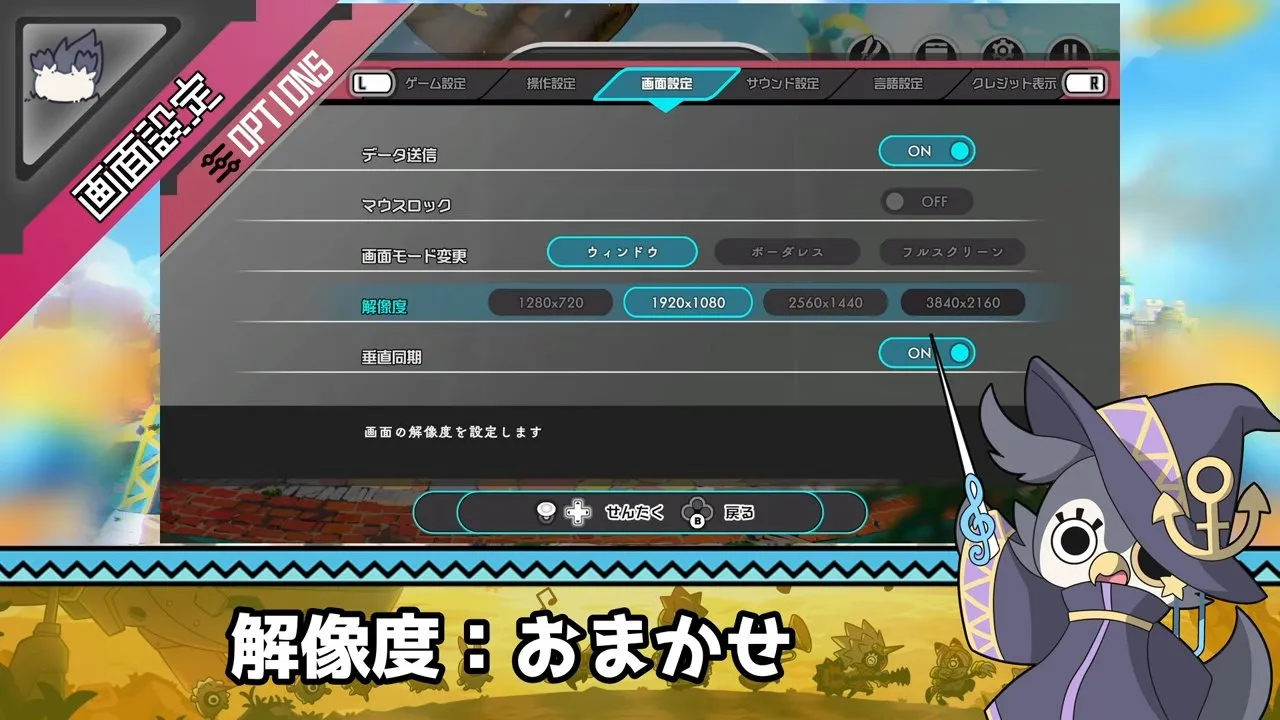
Set your resolution in Windowed mode, save, then switch to Borderless/Fullscreen. Ratatan can start in a 1280×720 window and ignore a new resolution picked in fullscreen; changing it in this order under Options → Display is the fix players use.
Why Can't You Change Resolution in Ratatan?
Try changing the resolution while Windowed is selected, then save before switching back to Borderless/Fullscreen. The useful part of this workaround is the order: changing the resolution and returning to fullscreen are separate passes through the menu.
- Open Options → Display and select Windowed.
- Select the resolution you want.
- Back out of the menu and save your settings.
- Open Options → Display again.
- Select Borderless/Fullscreen and apply the settings.
Don't skip step 3. Going straight from the resolution list to fullscreen is what leaves the old resolution in place.
Does Ratatan Support Ultrawide During Runs?
No. Ratatan has no 21:9 or 32:9 support during runs. Rataport can stretch across a super ultrawide screen, but once a run starts the game drops back to 16:9 with black bars on the sides. Players have reported this since Early Access, and there is no in-game setting that changes it.
Picking a wider resolution with the steps above won't help, because the game still renders runs at 16:9. For which platforms Ratatan is on, see Ratatan release date and platforms.
How Do You Make Ratatan Show PS Controls?
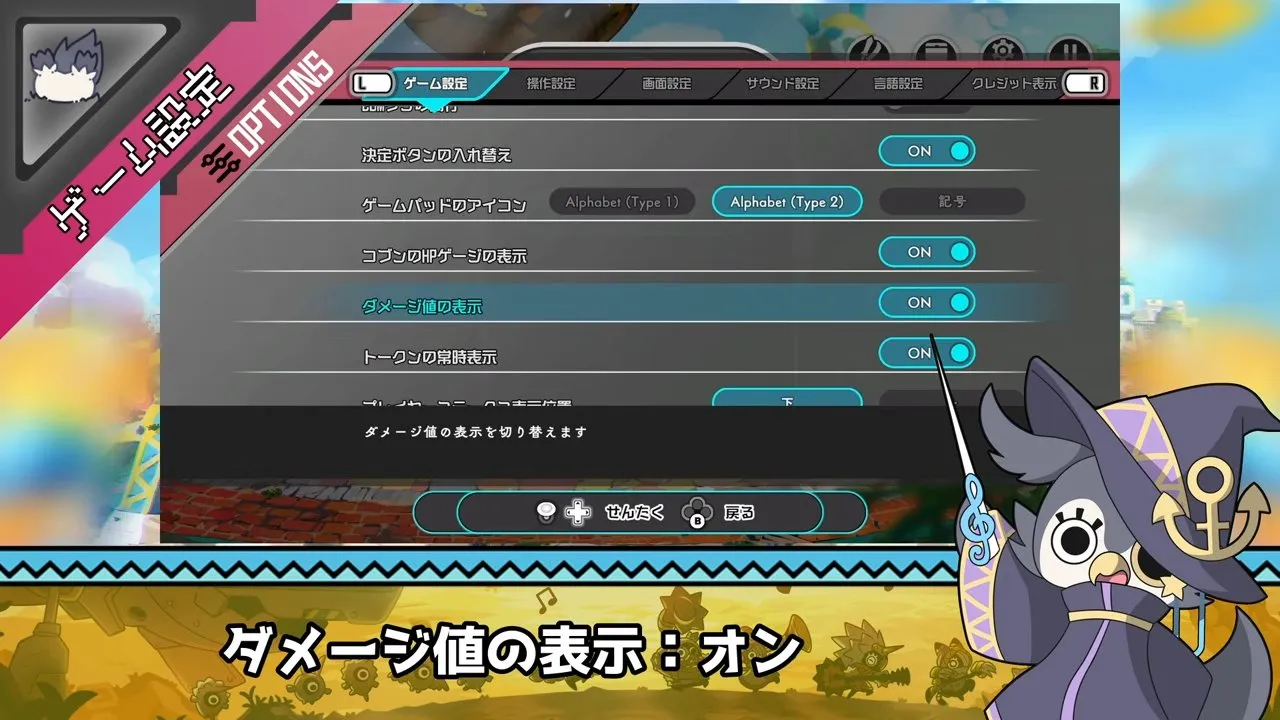
Choose Options → Gameplay → Button Icons → Symbols to display PlayStation button prompts. You want the Gameplay tab for this setting, even though the nearby Controls tab may sound like the obvious place to look.
- Open Options.
- Select Gameplay.
- Find Button Icons.
- Choose Symbols.
The icon choices map to these controller labels:
| Button Icons option | Prompt style |
|---|---|
| Alphabet (Type 1) | Xbox |
| Alphabet (Type 2) | Nin |
| Symbols | PlayStation |
With Symbols on, menus show L1 and R1 for tabs and a circle for Back. Once the prompts make sense, Ratatan how to play is the next stop for learning the game itself.
Can You Play Ratatan on Steam Deck, and What Settings Should You Try?
You can play Ratatan on Steam Deck, but it is not an officially supported device, and the game has no native Linux support. That distinction still matters even if the game launches and you can play normally.
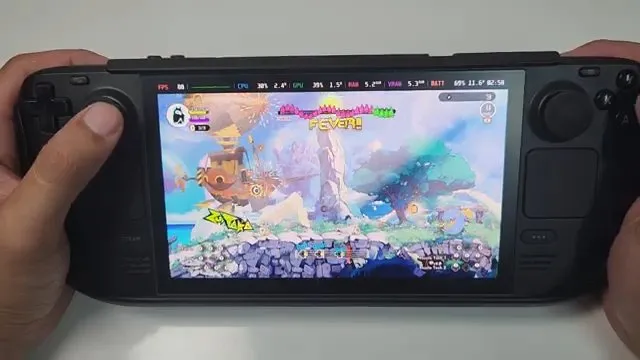
Use these settings for a smooth run:
| Setting | What to use |
|---|---|
| Resolution | 1280×720; 1280×800 was unsupported in that test, leaving black bars at the top and bottom. |
| Steam Deck OLED frame rate | Limit to 60 FPS; attempting 90 FPS produced drops into the 80s and occasional lower stutters. |
A steady 60 FPS matters more than a higher, wobbly frame rate in a rhythm game, because frame drops throw off your timing.
If the game crashes on launch, update it: a Steam Deck launch crash was fixed in v0.7.11 on December 29, 2025.
How Do You Skip Credits in Ratatan?
In single player, hold down a key during the Ending to skip it and return to Rataport. A quick tap won't do it; keep the key held.
The solo Ending skip applies to single player. The October 14, 2026 multiplayer known issues list describes an unintended countdown during the end credits, followed by unresponsive controls when it ends. Treat that multiplayer symptom separately from the solo skip.
Skipping the solo Ending gets you back to Rataport. If you want to follow what happens around that ending, continue with Ratatan ending; if you are arranging another session with friends, head to Ratatan multiplayer.